The Property Calculator
The Property Calculator (Workspace > Tools or press Shift+F3) allows you to calculate new properties, or to modify existing ones, for all data objects in the JewelExplorer, like wells, surface representations (e.g. a tri-mesh), seismic data or a 3D grid. The calculator offers a number of built-in functions that can be used in your expression. These functions perform a wide range of operations on your properties, from mathematical calculations, statistical calculations to data transformations. The target object, the settings and the expression that you use are stored as a 'property calculator model' (recognizable by its icon,  ) in the Property Calculator, while the property itself is stored in the JewelExplorer under the object it is created for (with the regular property icon,
  ).
).
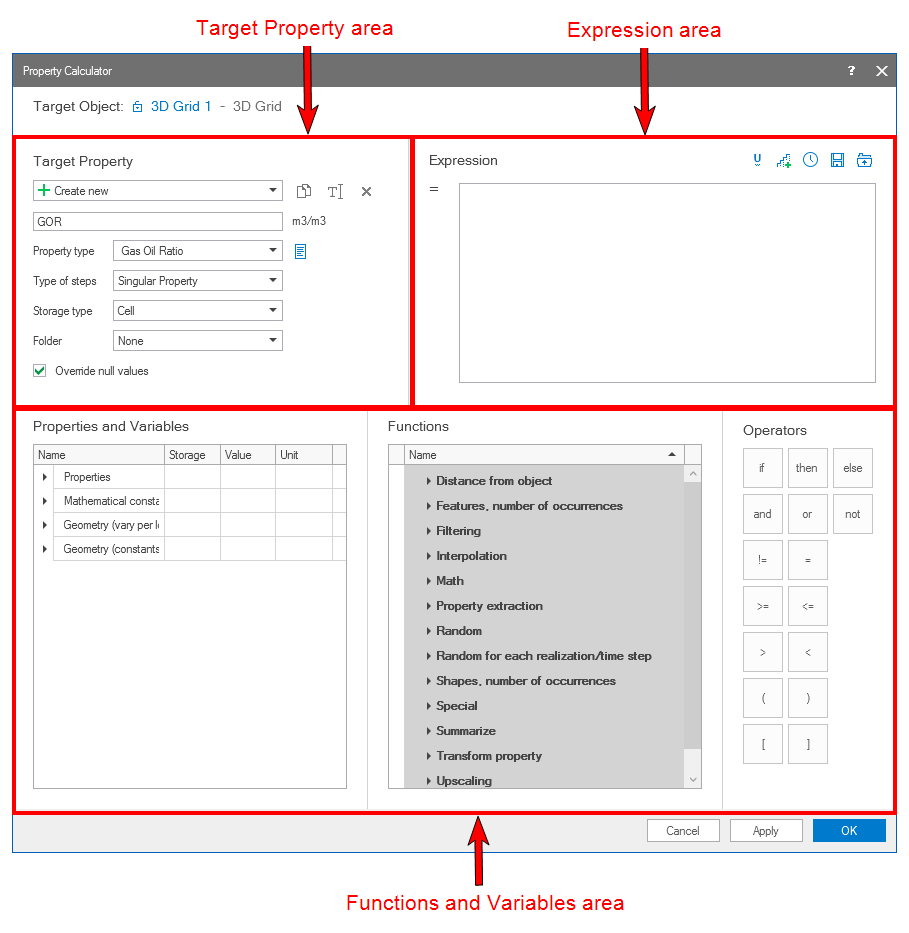
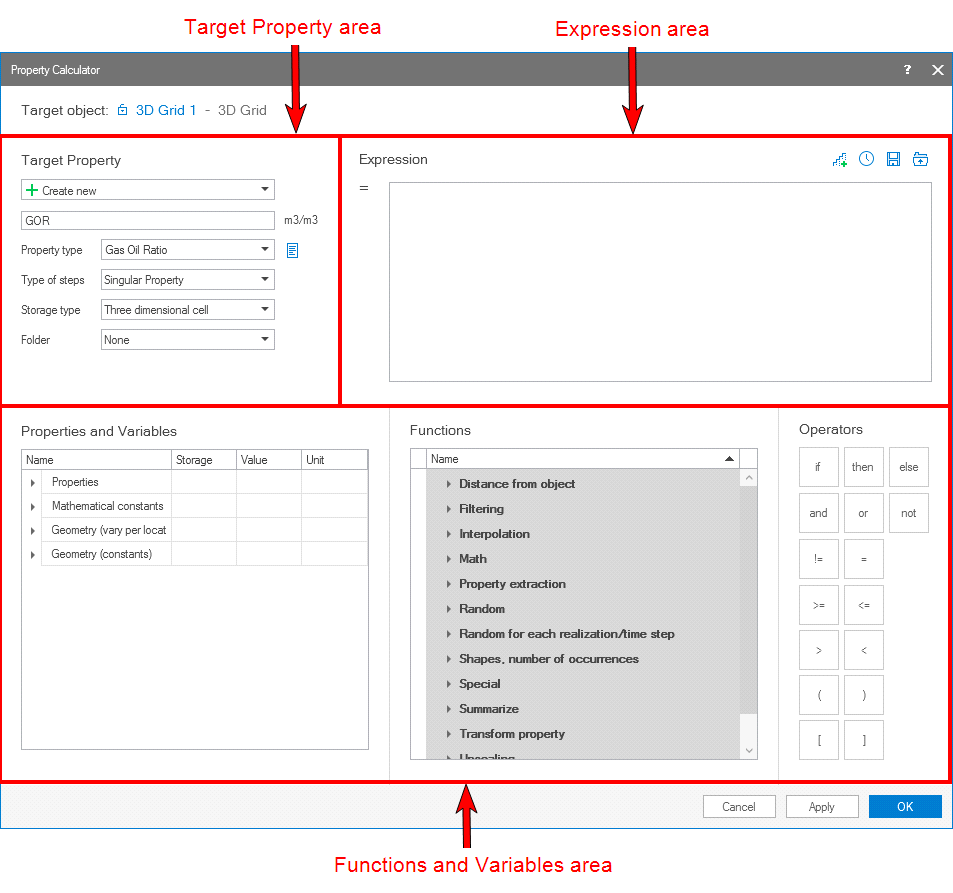
The different 'areas' on the Property Calculator form click to enlarge
The Property Calculator form contains three areas (see the image above) with related controls. For explanations on how to use the controls in each of these areas, click on the following links:
- The 'Target Property area' - intended to define the property 'metadata' (such as property (calculator model) name, property type, nr. of realizations, etc) for the property that you are going to calculate. The top drop-down list can be used to create a new property, create a property calculator model, to select an existing property or to select an existing property calculator model. The Target Property area also contains a toolbar with the following options:
- The'Expression area' - here you can generate the functional expression. In this area you also find several tools to save and recall used expressions, and to create discrete expressions.
- The 'Functions and Variables area' - consisting of Properties and Variables (left side), Functions (middle) and Operators (right side). In these sections you find all the properties, object variables and functions to quickly add elements to your expression. The availability of functions and variables is interactive and depends on the selected target object, the selected property type and the existing properties in your solution.

|
Duplicates the currently selected property calculator model in the drop-down list (i.e. the active model). The created property in the JewelExplorer is duplicated as well. |

|
Opens the Rename dialog, where a new name can be given to the active property calculator model. The created property in the JewelExplorer is renamed as well. |

|
Deletes the active property calculator model. The created property is also deleted from the JewelExplorer. |
For the overall workflow of the Property Calculator, see Using the Property Calculator.
For more detailed information on the functions and examples of their use, see Property Calculator functions and examples.
The color coding used in the Property Calculator expressions is as follows:
|
Red |
Existing property name (between $ signs, so that a property name with all characters is supported ) |
|
Light green |
Discrete property class (between # signs to make it different from a property) |
|
Dark blue |
Supported keyword (e.g. if, then, else, etc.) |
|
Light blue |
Mathematical constants and standard variables (e.g. pi (π), null, time index, TVDSS, NumK, etc) |
|
Dark green |
Functions (e.g. sin, offset, Classcount, Distance, etc.) |
|
Black |
All other variables and expressions |